On Premise -> Amazon AWS EC2
- Lorraine Anderson (Deactivated)
- Jan Klinke
- Jakub Sejba
- Vijayganesh Sivaprakasam
1. Introduction
The purpose of this Deployment guide is to demonstrate the way in which Dbvisit Standby 8.0 software can be installed on an Amazon AWS EC2 instance. In this guide, we focus on the Primary being located 'on-premise' and a Standby database hosted in AWS. In another document, we focus on both the Primary and Standby databases hosted in AWS.
A link that document can be found here
2. Initial Setup and Configuration
2.1 Provisioning the Standby Server
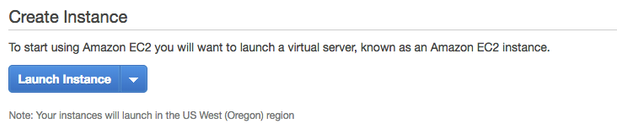
Connect to AWS EC2 Dashboard and Select 'Launch Instance'
In this guide we are going to install and configure Dbvisit Standby 8.0.20 on Oracle Linux, choosing the AMI (ami-0d25886d) from the Community AMIs. This is Step 1 in the launch instance wizard.
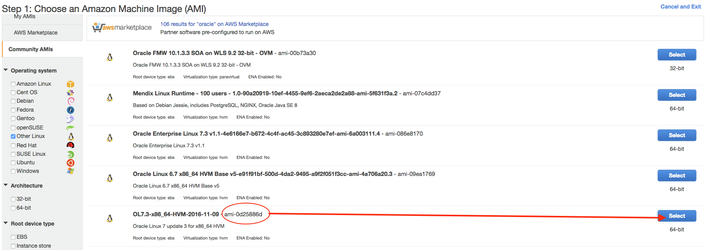
Click select.
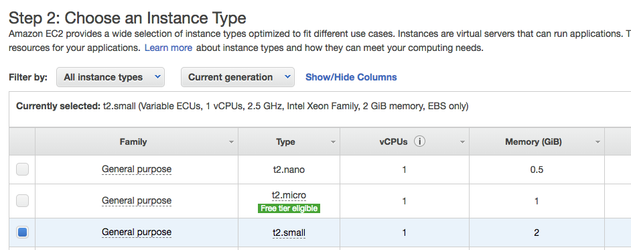
Step 2 "Choose an Instance Type": The allows you to select from a range of Amazon Instance Types. The "learn more" link directs you to more information about the instance types and how they might suit your computing needs. For the purpose of this guide only, we have chosen t2.small.
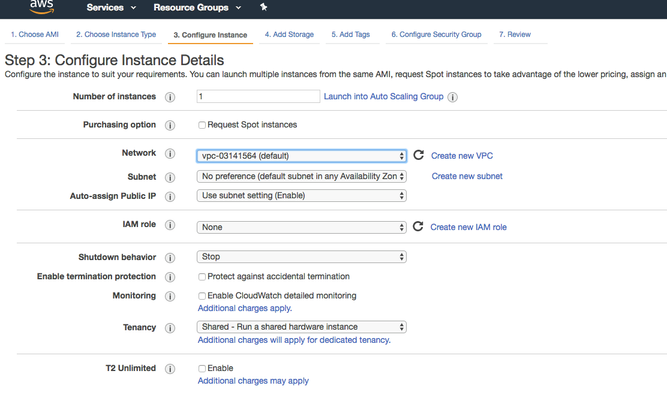
Step 3: Configure the Instance Details. Here we choose the defaults,
Step 4 "Add Storage". We also accept the defaults here as a 30GB disk is more than enough for the demo purposes.
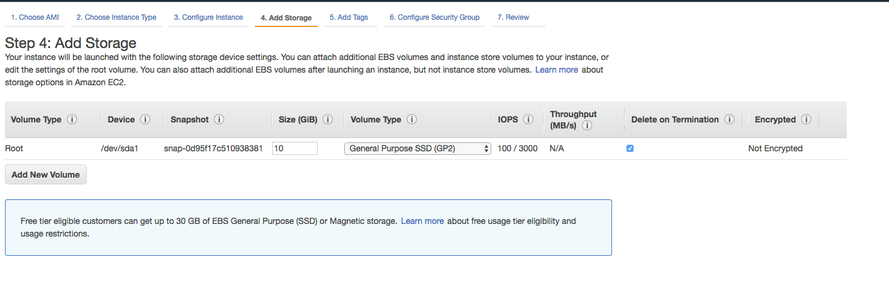
Throughout this guide, no mention is made to the licensing implications of running Oracle software on Amazon AWS. The setup we have here has been built for demonstration purposes/ Further information regarding Oracle Licenses in the cloud can be found here. Also Licensing Oracle Software in the Cloud Computing Environment.
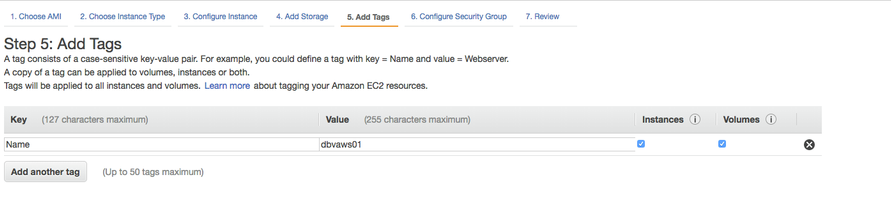
Step 5 "Add Tags". Create a Tag with Key = "Name" and Value = "dbvaws01"
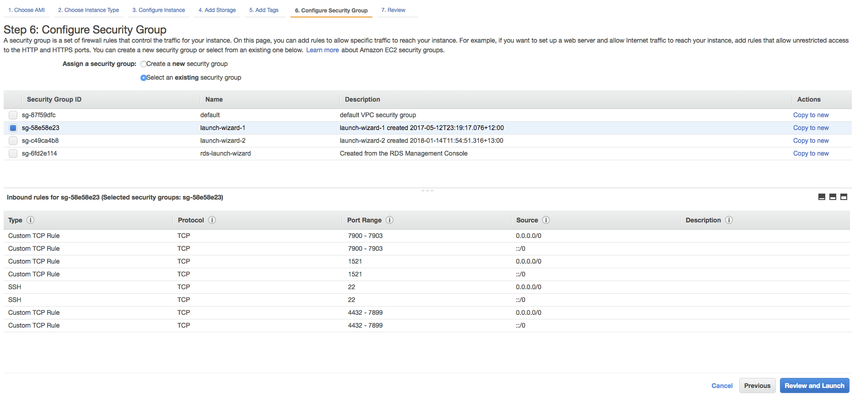
Step 6 "Configure Security Group". Here, we've chosen an existing security group with ports 22 (SSH), 4433 (dbvserver), 7890 (dbvnet) and 7891 (dbvagent) enabled within the INBOUND security rules.
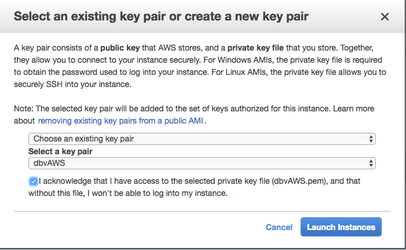
The final step is to review and Launch the new instance making sure that if the 'Choose an existing key pair' option is selected that the .pem file is accessible by yourself.
I have access to the dbvAWS.pem file so I clicked the tick box and then proceeded with "Launch Instance"
Once the launch is initiated, the running instance can be viewed from within the EC2 dashboard, Instances submenu

The preparation of the OL7 Linux for the oracle user creation and the installation of the Oracle binaries are outwith the scope of this guide. The next section starts from the scp of the Dbvisit Standby binaries to the cloud host. The On-premise primary database is 11.2.0.4. Therefore, these binaries were also installed. This ORACLE_BASE article was used as a reference.
The 'primary' server in this guide is an Oracle Virtualbox VM running locally. The network is configured to have two adapters, one bridged and one host only. For it to be internet facing, the dbvisit dbvnet and dbvagent processes must listen on the IP that is visible from the router. This means, when the request to the externally facing (office) IP address on one of the dbvisit ports comes in, the router is able to forward this to the VM.
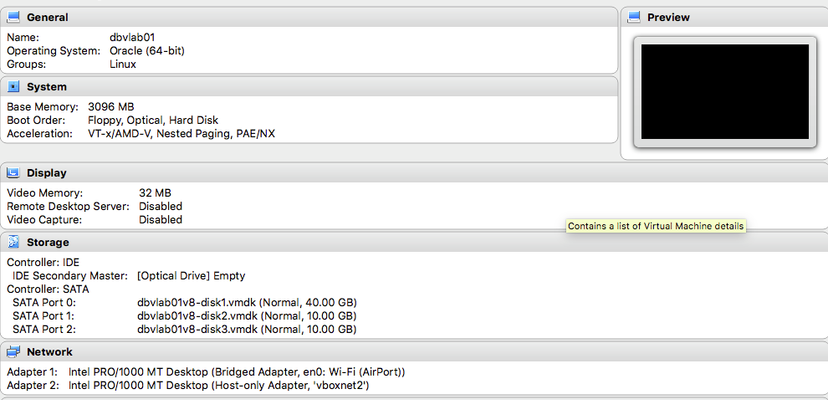
The machine name is dbvlab01 and the Ipv4 Public IP of the AWS instance dbvaws01 has been added to the local host's file.
root@dbvlab01[/root]: cat /etc/hosts |grep -i dbvaws01
52.38.136.118  dbvaws01
On the AWS server dbvaws01, the IP address of our office router has been added to the /etc/hosts file, so that a ping of server dbvlab01 resolves to this address which in turn finds the VM via the bridged network adaptor. This has not been added to the guide for apparent reasons.
An overview of both Primary and Standby machines is shown in the table below.
| Primary Server Details | Standby Server Details |
|---|---|
Name: dbvlab01 Hosted: Oracle Virtualbox Running Locally vCPUs : 2 OS: Oracle linux EL6 Memory : 3G Storage : 60G Version: 11.2.0.4 Edition: Enterprise Edition Database : XE Dbvisit Base: /usr/dbvisit/standby Standby Version: 8.0.20 | Name: dbvaws01 Hosted: Amazon AWS EC2 vCPUs : 1 OS: Oracle Linux EL7 Memory : 2G Storage : 30G Version: 11.2.0.4 Edition: Enterprise Edition Database : XE Dbvisit Base: /usr/dbvisit/standby Standby Version: 8.0.20 |
2.2 Preparing the AWS Standby Instance: dbvaws01
Connect to the server with key pair specified on creation (dbvAWS) as the ec2-user and 'sudo su -' to the root user. As the root user, prepare the directory that will be the Dbvisit Standby Base.
Lorraines-MBP:Downloads landers$ ssh -i dbvAWS.pem ec2-user@dbvaws01
[ec2-user@ip-172-31-13-235 ~]$ sudo su -
[root@ip-172-31-13-235 ~]# cd /usr
[root@ip-172-31-13-235 usr]# mkdir dbvisit
[root@ip-172-31-13-235 usr]# chown oracle:oinstall dbvisit
The latest version of the Dbvisit Standby software has already been downloaded locally. As the ec2-user, scp this to the instance, then as root change the ownership and unpack the installation files.
Lorraines-MBP:Downloads landers$ scp -i dbvAWS.pem dbvisit-standby8.0.20-el7.zip ec2-user@52.38.136.118:/tmp
dbvisit-standby8.0.20-el7.zip                                           100%   71MB   5.5MB/s   00:13
[root@ip-172-31-13-235 usr]# chown oracle:oinstall /tmp/dbvisit-standby8.0.20-el7.zip
[root@ip-172-31-13-235 tmp]# su - oracle
[oracle@ip-172-31-13-235 ~]$ cd /tmp
[oracle@ip-172-31-13-235 tmp]$ unzip dbvisit-standby8.0.20-el7.zip
Archive:  dbvisit-standby8.0.20-el7.zip
  inflating: dbvisit-standby8.0.20-el7.tar
[oracle@ip-172-31-13-235 tmp]$ tar -xvf dbvisit-standby8.0.20-el7.tar
[oracle@ip-172-31-13-235 tmp]$ cp dbvisit-standby8.0.20-el7.tar /home/oracle
At this point, we will take an Amazon machine image of dbvaws01. It has the binaries copied over to /home/oracle (/tmp is storage that is lost on instance shutdown), the /usr/dbvisit directory in place with the correct permissions and the oracle user correctly installed. This image will be used when launching a second machine for the AWS Primary to AWS Standby guide.
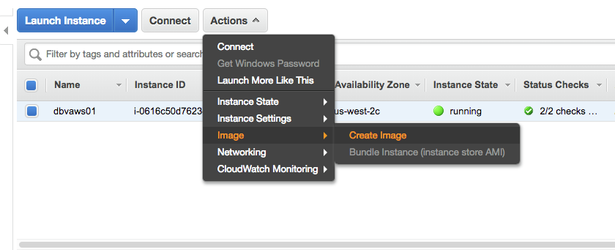
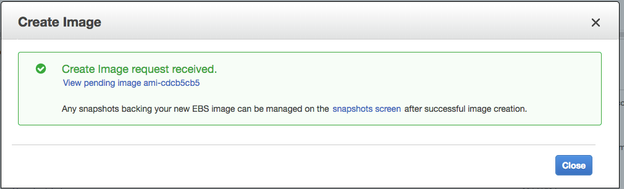
Now the AWS instance is ready for the next stage of installing the Dbvisit Standby software.
3. Install, Configure and Run the Standby software
3.1 Installing and Configuring the Software
This server, dbvaws01, will be the standby server to install all the components. Here is the link to the full installation guide. It is summarised below. Navigate to where the unpacked files are
[oracle@ip-172-31-13-235 tmp]$ cd dbvisit
[oracle@ip-172-31-13-235 dbvisit]$ ls -lrt
total 20
drwxr-x---. 10 oracle oinstall 4096 Mar  7 19:41 standby
drwxr-x---.  5 oracle oinstall 4096 Mar  7 19:41 dbvserver
drwxr-x---.  5 oracle oinstall 4096 Mar  7 19:41 dbvnet
drwxr-x---.  6 oracle oinstall 4096 Mar  7 19:41 dbvagent
drwxr-xr-x.  2 oracle oinstall 4096 Mar  7 19:41 installer
[oracle@ip-172-31-13-235 dbvisit]$ cd installer
[oracle@ip-172-31-13-235 installer]$ ls -lrt
total 2772
-rwxr-x---. 1 oracle oinstall 2835196 Mar  7 19:41 install-dbvisit
[oracle@ip-172-31-13-235 installer]$ ./install-dbvisit
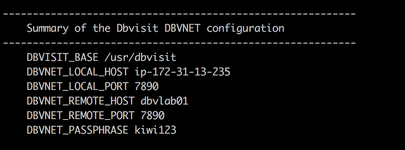
Accept the defaults for the dbvnet configuration and choose dbvlab01 as the remote host.
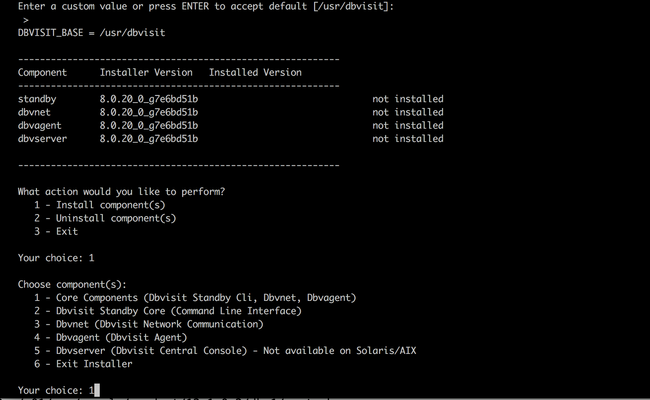
Dbvnet Summary Configuration.
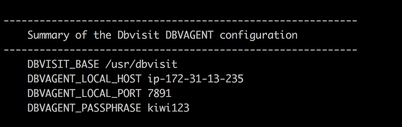
Dbvagent Summary configuration on the Standby Server
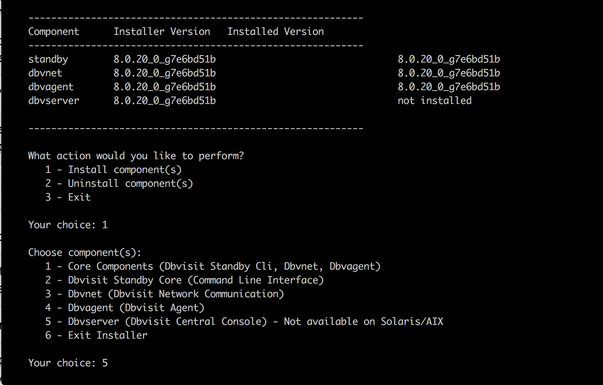
Once the core components are installed, continue with another install of the Dbvserver component.
Version 8.0.20 has a new parameter, that of DBVSERVER_PUBLIC_HOST (parameter public_address in dbvserver.conf)
Rather than accepting the default hostname prompt here, the public-facing IPv4 address of the AWS EC2 instance should be used. Public-facing IPv4 address that will be supplied to the Agents (Dbvagent) to be used for pushing information back to the Central Console. This is the externally resolvable address supplied to dbvagent, not an additional listener address on dbvserver itself.
It makes sense to have this address a fixed IP address that is persistent after the instance is shut down and restarted. In AWS this is known as an Elastic IP. However, this resource is an additional cost to the AWS EC2 instances. If the machines are only to be shut down during a controlled event, then the IP address change on instance restarted can be edited in the /usr/dbvisit/dbvserver/dbvserver.conf before the process is restarted. This risk of remembering this configuration change needs to be weighed against the cost of a persistent IP versus how often the server will be shut down.
If necessary add the IP address for the dbvaws01 server to its own /etc/hosts
[root@ip-172-31-13-235 tmp]# cat /etc/hosts|grep -i dbvaws01
52.38.136.118   dbvaws01
Dbvserver Summary configuration.
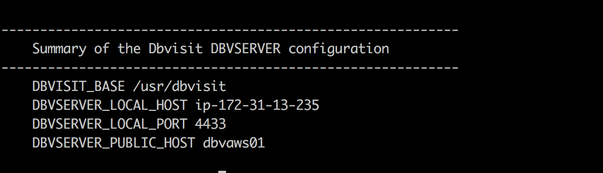
The final summary should show all the components installed, and at this stage, the installer can be exited.
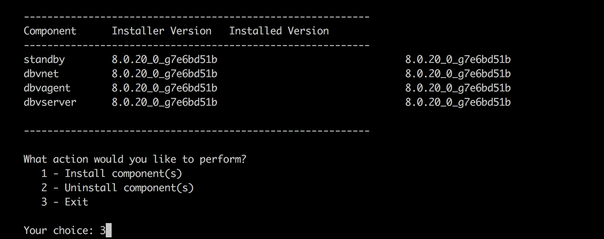
The same installation has already been performed on the on-premise host, dbvlab01. The only difference is that there is no dbvserver to configure on this host.
In the /home/oracle directory of each server two scripts (dbv_start and dbv_stop) were created to start and stop the dbv* processes quickly. The dbv_start is shown below, dbv_stop is similar just with the stop command instead of start.
[oracle@ip-172-31-13-235 ~]$ cat dbv_start
#!/bin/bash
cd /usr/dbvisit/dbvnet
./dbvnet -d start
cd ../dbvagent
./dbvagent -d start
cd ../dbvserver
./dbvserver -d start
ps -ef|grep -i dbv
To test that the connectivity is working from on-premise to the standby machine, try to telnet on each of the dbvisit ports (7891, 7890 and 4433). e.g. on the dbvagent port 7891
oracle@dbvlab01[/home/oracle]: telnet dbvaws01 7891
Trying 52.38.136.118...
Connected to dbvaws01.
Escape character is '^]'.
Similarly, we can test the opposite direction, from cloud to on-prem.
[oracle@ip-172-31-13-235 ~]$ telnet dbvlab01 7890
Trying 203.211.92.37...
Connected to dbvlab01.
Escape character is '^]'.
3.2 Start the GUI and Create the DDC
The following browsers are supported when using the Dbvisit Standby Web Based interface (latest versions recommended)
- Firefox
- Chrome
Future support for the following browsers are planned:
- Safari
- IE
Download and install either Chrome or Firefox.
From within the browser navigate to the https://<dbvserver_host>:4433. In this case, the standby node
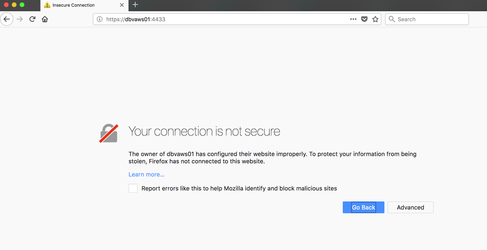
Click 'Advanced' and add the security exception to proceed to the login screen
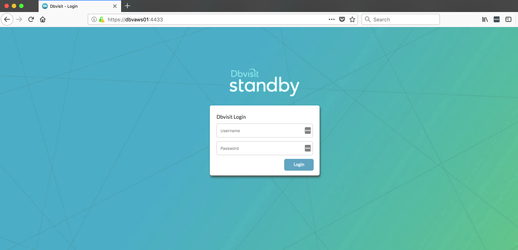
Enter the default username/password of admin/admin and proceed to the first screen, manage hosts.
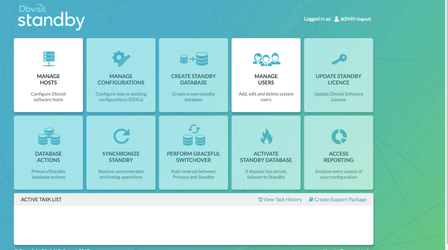
Enter each of the hosts in turn, specifying the passphrase used at creation time.
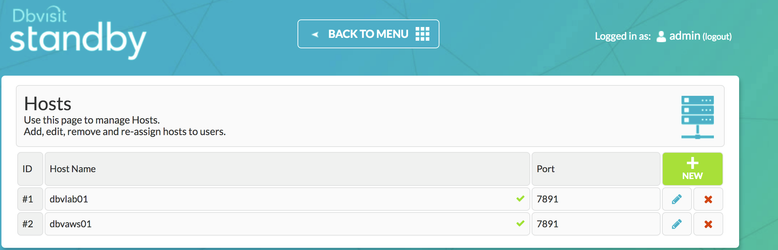
Return to the Main Menu and then proceed on to creating the DDC
The creation of the DDC file is shown in the following steps.
Firstly Create a directory for ARCHSOURCE and ARCHDEST parameters.
The former is only required in the event of a Graceful switchover when the Primary becomes a Standby database. In this example, the same location is created on each server.
[oracle@ip-172-31-13-235 ~]$ mkdir /u01/app/oracle/dbvisit_arch
To create a DDC from the GUI. Choose the Manage Configurations Tab
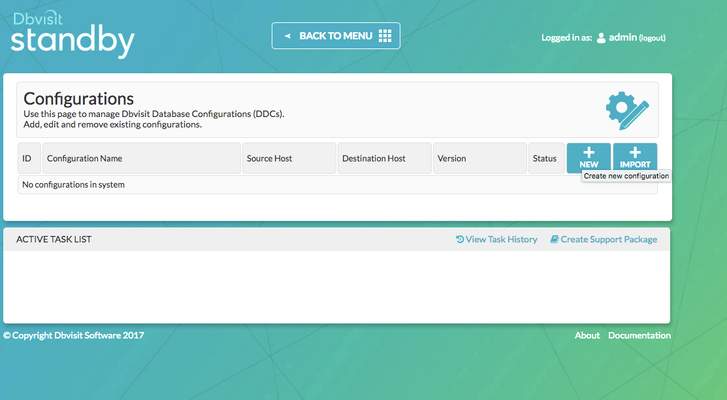
Create a New Configuration. Fill out the relevant entries then click 'Submit' Careful to select the correct value for ORACLE_HOME on the remote host if the installation location differs as it does here.
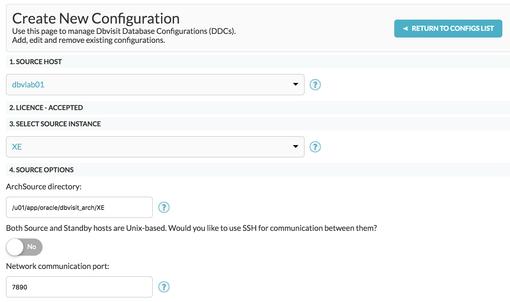
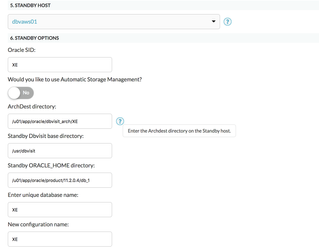
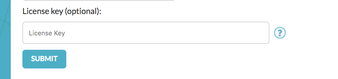
In Standby version 8.0.20 it is possible to enter the license details during the DDC creation, this option was chosen during the creation of this DDC file.
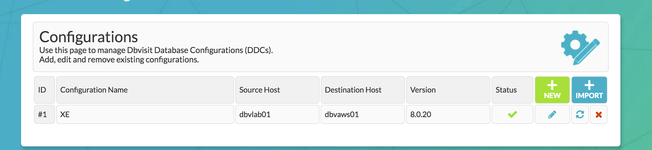
The new configuration, 'XE' can be viewed and edited from the 'Manage Configurations' Tab.
3.3 Create the Standby Database
3.3.1 Creating the Standby with the GUI
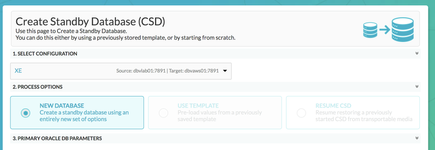
Choose the Create Standby Database Tab from the Home Screen.
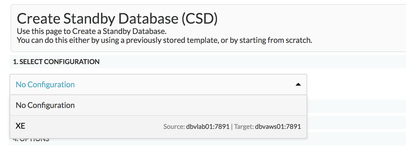
Select your configuration
Select New Database
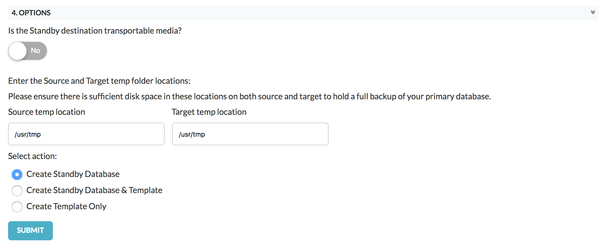
Then check there is enough space in the Source and Dest temp locations before proceeding to Submit.
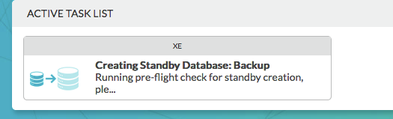
Click on the Create Standby Task to view the progress

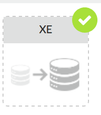
The task has completed when a small green 'tick' appears on the task icon.
3.3.2 Creating the Standby with the CLI
To Create the Standby database with the command line is shown below
oracle@dbvlab01[/usr/dbvisit/standby]: ./dbvctl -d XE --csd

>>> Running pre-checks please wait... done
What would you like to do:
   1 - Create standby database (and optionally save settings in template)
   2 - Help
   3 - Terminate processing
   Please enter your choice [1]: 1

-------------------------------------------------------------------------------
Answer Yes to transfer the datafiles directly to the standby server (not
recommended for large database or slow networks)
Note tablespaces will be placed in backup mode for direct copy.
Answer No (recommended) to create an RMAN backup of primary datafiles in a
temporary location and transfer the backup to the standby server

=>Do you want to copy database files directly to the standby server? [N]:
Your input: N

Is this correct? <Yes/No> [Yes]:

-------------------------------------------------------------------------------

=>Do you want to use TRANSPORTABLE MEDIA to transfer the database backup to the
standby server? Transportable media is an external device such as a USB drive
that is first plugged into the primary server and then manually transferred to
the standby site and plugged into the standby server to continue the process.
It can be used for large databases or slow networks.
Specifying No means the network will be used to transfer the database backup.
[N]: N
Your input: N

Is this correct? <Yes/No> [Yes]:

-------------------------------------------------------------------------------
A temporary location must be specified on dbvlab01 where the database will be
backed up to first.
This location must be big enough to hold RMAN backup of the whole database
(1.39GB).

=>Specify the location on this server: [/usr/tmp]:
Your input: /usr/tmp

Is this correct? <Yes/No> [Yes]:

-------------------------------------------------------------------------------
A temporary location must be specified on dbvaws01 where the database backup
will be copied to before moving to specified locations.

=>Specify location on remote server: [/usr/tmp]:
Your input: /usr/tmp

Is this correct? <Yes/No> [Yes]:

The following oracle database parameters will be set in the standby database pfile or spfile:
-------------------------------------------------------------------------------
SID            NAME                                    VALUE

*              audit_file_dest                         /u01/app/oracle/admin/XE/adump
*              compatible                              11.2.0.4.0
*              control_files                           /u01/app/oracle/oradata/XE/control01.ctl,/u01/app/oracle/fast_recovery_area/XE/control02.ctl
*              db_block_size                           8192
*              db_domain
*              db_name                                 XE
*              db_recovery_file_dest                   /u01/app/oracle/fast_recovery_area
*              db_recovery_file_dest_size              4007657472
*              db_unique_name                          XE
*              diagnostic_dest                         /u01/app/oracle
*              dispatchers                             (PROTOCOL=TCP) (SERVICE=XEXDB)
*              open_cursors                            300
*              pga_aggregate_target                    268435456
*              processes                               150
*              remote_login_passwordfile               EXCLUSIVE
*              sga_target                              805306368
*              spfile                                  OS default
*              undo_tablespace                         UNDOTBS1

-------------------------------------------------------------------------------
What would you like to do:
   1 - Proceed with creating the standby database
   2 - Edit oracle database parameters for the standby database pfile/spfile
   3 - Terminate processing
   Please enter your choice [1]:

Validating oracle database parameters... please wait
=>SUCCEEDED

-------------------------------------------------------------------------------

=>Create standby database template for XE using provided answers? [Y]:
Your input: 1

Is this correct? <Yes/No> [Yes]:

-------------------------------------------------------------------------------

=>Continue with creating a standby database? (If No processing will terminate,
the saved template will be available for future use) [Y]:
Your input: 1

Is this correct? <Yes/No> [Yes]:

>>> dbvctl will now run a pre-flight check for standby database creation. An attempt will
    be made to create a standby (s)pfile using oracle standby database parameters, followed
    by trying to start the standby instance. If this step fails, then please double-check
    the following items before re-running dbvctl again:

    1) Review the standby database parameters you have supplied and provide valid values
    unless a template is used.
    2) Recreate the template to provide valid values for standby database parameters if a
    template is used.

>>> Running pre-flight check for standby creation, please wait... done

WARNING: FORCE_LOGGING is disabled in the primary database!

>>> Total database size for XE is 1.39GB

>>> Backing up primary database...

    Backing up datafile 1... done
    Backing up datafile 2... done
    Backing up datafile 3... done
    Backing up datafile 4... done

>>> Creating standby control file... done

>>> Transferring backup from dbvlab01 to dbvaws01...

    Transferring /usr/tmp/dbv_XE_csd_dbf_1_1esqc6g3_1_1.rman... done
    Transferring /usr/tmp/dbv_XE_csd_dbf_1_1fsqc6gs_1_1.rman... done
    Transferring /usr/tmp/dbv_XE_csd_dbf_2_1gsqc6gu_1_1.rman... done
    Transferring /usr/tmp/dbv_XE_csd_dbf_3_1hsqc6hd_1_1.rman... done
    Transferring /usr/tmp/dbv_XE_csd_dbf_4_1isqc6hf_1_1.rman... done

>>> Restoring standby control files... done

>>> Starting standby database XE on dbvaws01 mount... done

>>> Restoring datafiles on dbvaws01...

    Restoring datafile 1... done
    Restoring datafile 2... done
    Restoring datafile 3... done
    Restoring datafile 4... done

>>> Renaming standby redo logs and tempfiles on dbvaws01... done

>>> Completing standby database creation... done

>>> Standby database created.


>>> Performing checkpoint and archiving logs... done

>>> Synchronising standby... done

PID:31758
TRACE:31758_dbvctl_csd_XE_201802040658.trc
oracle@dbvlab01[/usr/dbvisit/standby]:
3.4 Performing Basic Tasks
Some examples of basic tasks are outlined below. Please refer to the online documentation for more details on each command.
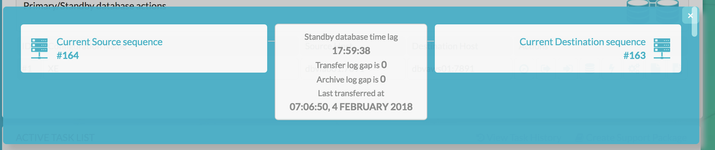
3.4.1 Log Gap Report
Run a log gap report from the Primary Site
oracle@dbvlab01[/usr/dbvisit/standby]: ./dbvctl -d XE -i
=============================================================
Dbvisit Standby Database Technology (8.0.20_0_g7e6bd51b) (pid 32156)
dbvctl started on dbvlab01: Sun Feb  4 07:07:12 2018
=============================================================


Dbvisit Standby log gap report for XE thread 1 at 201802040707:
-------------------------------------------------------------
Destination database on dbvaws01 is at sequence: 163.
Source database on dbvlab01 is at log sequence: 164.
Source database on dbvlab01 is at archived log sequence: 163.
Dbvisit Standby last transfer log sequence: 163.
Dbvisit Standby last transfer at: 2018-02-04 07:06:50.

Archive log gap for thread 1:  0.
Transfer log gap for thread 1: 0.
Standby database time lag (DAYS-HH:MI:SS): -17:59:38.


=============================================================
dbvctl ended on dbvlab01: Sun Feb  4 07:07:17 2018
=============================================================

oracle@dbvlab01[/usr/dbvisit/standby]:
Also from the GUI

3.4.2 Log Transfer
Sending the logs from the Primary via the CLI
oracle@dbvlab01[/usr/dbvisit/standby]: ./dbvctl -d XE
=============================================================
Dbvisit Standby Database Technology (8.0.20_0_g7e6bd51b) (pid 32326)
dbvctl started on dbvlab01: Sun Feb  4 07:09:46 2018
=============================================================

>>> Obtaining information from standby database (RUN_INSPECT=Y)... done
    Thread: 1 Archive log gap: 0. Transfer log gap: 0

Note FORCE_LOGGING is disabled in the primary database.

>>> Sending heartbeat message... skipped
>>> Performing a log switch... done
>>> Transferring Log file(s) from XE on dbvlab01 to dbvaws01 for thread 1:

    thread 1 sequence 164 (o1_mf_1_164_f7cyqo5t_.arc)

=============================================================
dbvctl ended on dbvlab01: Sun Feb  4 07:10:03 2018
=============================================================

oracle@dbvlab01[/usr/dbvisit/standby]:
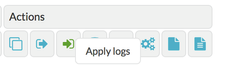
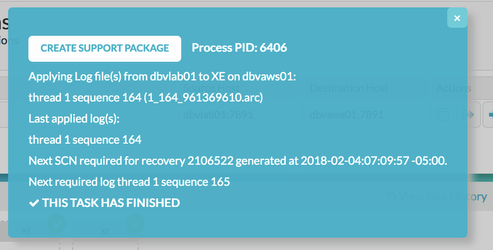
Apply Logs at the Standby Site via the GUI
3.4.3 Daemon Status
Start the Daemons for automatic send/apply from the GUI Database Actions Tab.
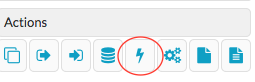
The lightning bolt icon manages the daemon processes.
When started on both sites they Log gap managed automatically and if no natural log switches have occurred, the daemon will also signal a log switch to keep the standby LAG to the desired amount. More information regarding the daemon settings can be found here in Section 4
https://dbvisit.atlassian.net/wiki/display/DS8QSG/Dbvisit+Standby+Scheduling
3.4.4 Starting Standby Database in Readonly Mode
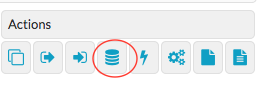
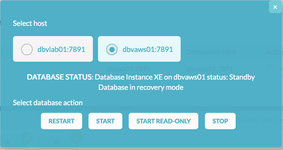
From the Database Actions Tab choose the Database Icon. This allows the user to perform database actions on each node.
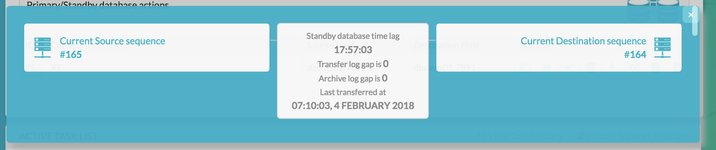
Before the Standby Database can be opened in readonly mode, there must be a log gap of 0 between the two systems.
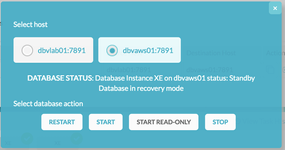
Select the Standby Host, review the current status and Select Start READ ONLY.

Now, the status is Read Only for the standby database.
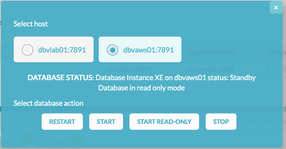
To switch back again. Choose Restart
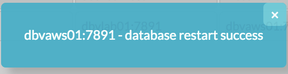
Now the Standby is back in recovery mode, and the logs can be applied as usual.
3.5 Performing Graceful Switchover
The following screenshots show a Graceful Switchover from one Cloud Standby to the other using the GUI. A first pre-requisite is to ensure that the daemons started earlier are not running while the switchover is in progress.
3.5.1 Check the Status of the Daemons
If the daemons have been started in the previous step, they need to be stopped before performing a graceful switchover.
3.5.2 Graceful Switchover Icon GUI
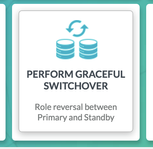
3.5.3 Check Log Gap is Zero and Click Submit
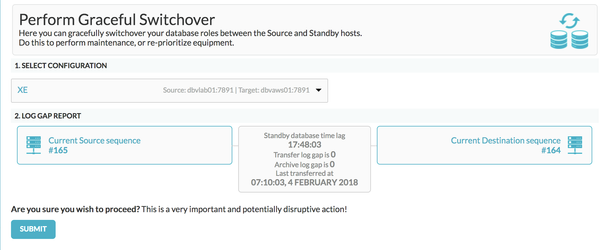
3.5.4 Locate the Task on the Task Bar and Monitor the Activity
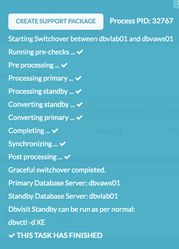
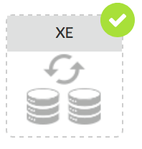
Verify the Switch of hosts in the Configurations tab.
3.5.5 Verify the New Roles within each of the Databases
Verify the new database roles within the database
oracle@dbvlab01[/usr/dbvisit/standby/trace]: . oraenv
ORACLE_SID = [XE] ?
The Oracle base remains unchanged with value /u01/app/oracle
oracle@dbvlab01[/usr/dbvisit/standby/trace]: sqlplus / as sysdba

SQL*Plus: Release 11.2.0.4.0 Production on Sun Feb 4 07:30:23 2018

Copyright (c) 1982, 2013, Oracle.  All rights reserved.


Connected to:
Oracle Database 11g Enterprise Edition Release 11.2.0.4.0 - 64bit Production
With the Partitioning, OLAP, Data Mining and Real Application Testing options

SQL> select database_role from v$database;

DATABASE_ROLE
----------------
PHYSICAL STANDBY

[oracle@ip-172-31-13-235 tmp]$ . oraenv
ORACLE_SID = [XE] ? XE
The Oracle base remains unchanged with value /u01/app/oracle
[oracle@ip-172-31-13-235 tmp]$ sqlplus / as sysdba

SQL*Plus: Release 11.2.0.4.0 Production on Thu Mar 8 07:19:55 2018

Copyright (c) 1982, 2013, Oracle.  All rights reserved.


Connected to:
Oracle Database 11g Enterprise Edition Release 11.2.0.4.0 - 64bit Production
With the Partitioning, OLAP, Data Mining and Real Application Testing options

SQL> select database_role from v$database;

DATABASE_ROLE
----------------
PRIMARY

SQL>
3.6 Activate the Standby Database
It is possible to activate the Standby Database and make it become the new Primary. This is also called failover to the standby database.
The assumption is that the original Primary site has been lost and needs to be rebuilt.
From the Central Console/GUI Choose the "Activate Standby Database Command."
3.6.1 Choose the Activate Standby Database
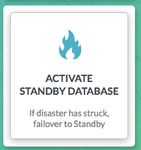
3.6.2 Select the Configuration
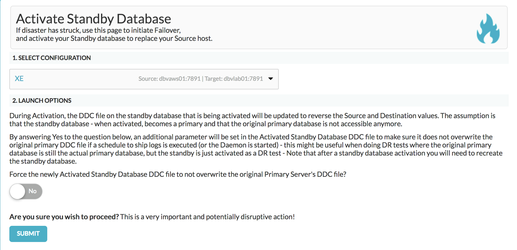
3.6.3 Monitor the Task from The Task Bar
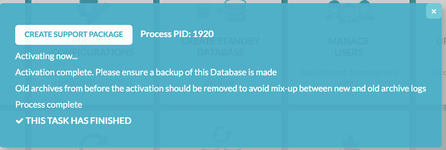
3.6.4 Verify the Status within the Database
oracle@dbvlab01[/usr/dbvisit/standby/trace]: . oraenv
ORACLE_SID = [XE] ?
The Oracle base remains unchanged with value /u01/app/oracle
oracle@dbvlab01[/usr/dbvisit/standby/trace]: sqlplus / as sysdba

SQL*Plus: Release 11.2.0.4.0 Production on Sun Feb 4 07:30:23 2018

Copyright (c) 1982, 2013, Oracle.  All rights reserved.


Connected to:
Oracle Database 11g Enterprise Edition Release 11.2.0.4.0 - 64bit Production
With the Partitioning, OLAP, Data Mining and Real Application Testing options

SQL> select database_role from v$database;

DATABASE_ROLE
----------------
PRIMARY

[oracle@ip-172-31-13-235 tmp]$ . oraenv
ORACLE_SID = [XE] ? XE
The Oracle base remains unchanged with value /u01/app/oracle
[oracle@ip-172-31-13-235 tmp]$ sqlplus / as sysdba

SQL*Plus: Release 11.2.0.4.0 Production on Thu Mar 8 07:19:55 2018

Copyright (c) 1982, 2013, Oracle.  All rights reserved.


Connected to:
Oracle Database 11g Enterprise Edition Release 11.2.0.4.0 - 64bit Production
With the Partitioning, OLAP, Data Mining and Real Application Testing options

SQL> select database_role from v$database;

DATABASE_ROLE
----------------
PRIMARY

SQL>
3.6.5 Manage Configurations Tab Implications
Now the Manage Configurations Tab has the option to choose the hosts. This allows you to either accept the current configuration with the new Primary (old Standby site) or start again with the original Primary site and depends on the circumstances of the Activation.
